Uploading videos
The upload area of every tool, accepted formats, uploading a folder or a ZIP, what happens after the drop and why a rejected file never blocks the batch.
Every tool starts with the same upload area. You drop one video, several, a whole folder or a ZIP archive; the Studio checks the files, sends them to your private space and prepares them for processing. Here is how it works, and what it turns down.
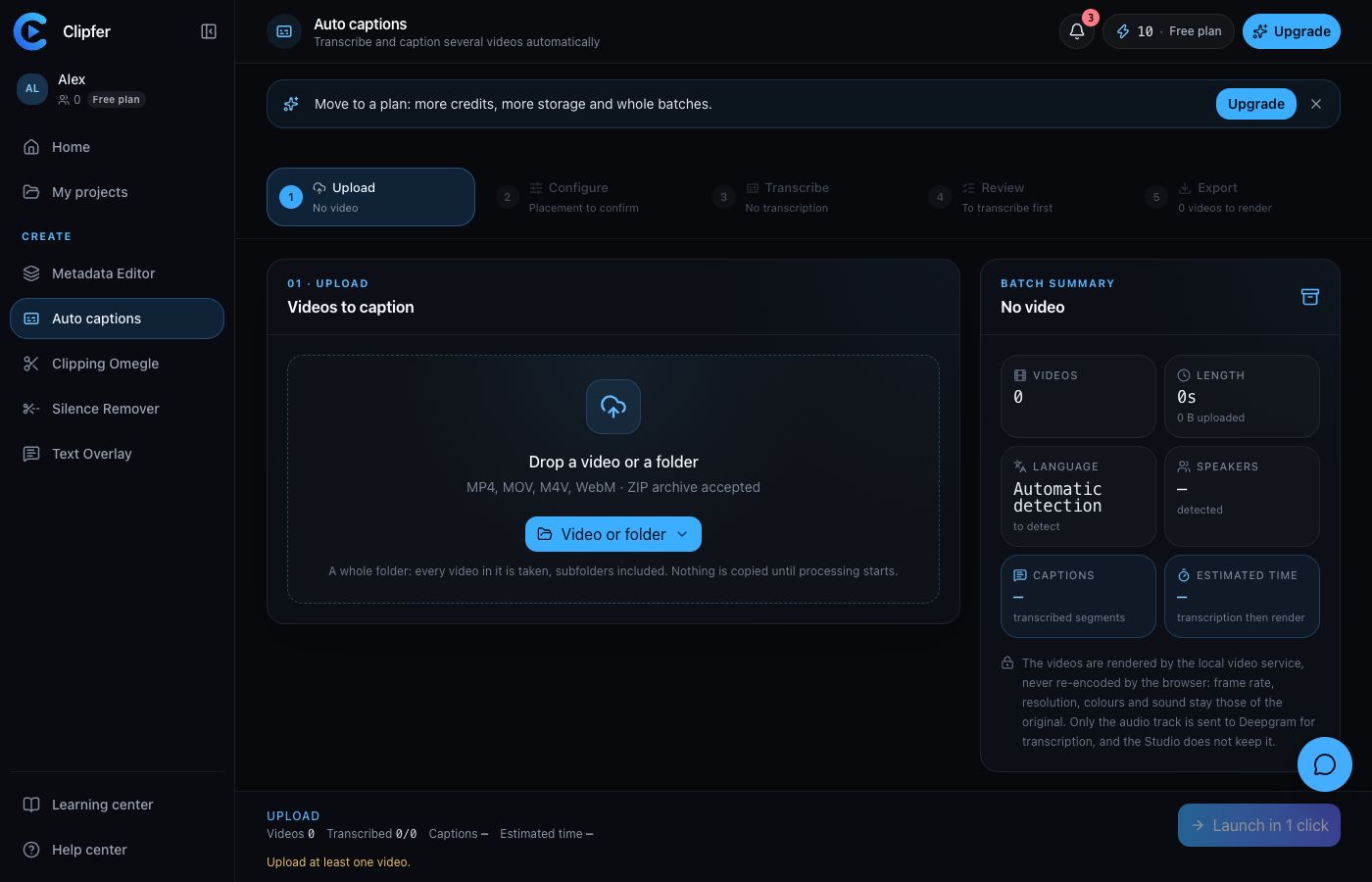
Three ways to add files
- Drag your files onto the Drop your videos here area: the message Release to upload appears when they are in the right place.
- Click Choose videos to pick them one by one in your file browser.
- Click Choose a folder to upload every supported video in a folder, or Upload a ZIP for an archive.
From the Studio's Home page, the Video or folder button does the same in one go: pick one video, several or a whole folder, then click the tool you want; it opens with the files already in its upload area.
For a folder, the Upload a folder? window says that your browser will ask permission to read it. Only the supported videos in the folder are kept; other files are ignored. Clipping Omegle takes a single recording at a time: its area is called Drop your recording here and its button Choose a recording.
Accepted formats
- Videos: MP4, MOV, M4V, WebM, up to 12 GB per file.
- A ZIP archive holding such videos.
- Photos, only in the Metadata Editor's photo mode: JPEG, PNG, WebP, HEIC or AVIF.
Videos shot vertically and iPhone HDR sources are handled as they are. A lone audio file (MP3, WAV…) is skipped: only videos are processed.
What happens after the drop
The Studio first reads the selection on your device. The Analysis progress bar goes through Reading the selection, Checking the formats, Reading the metadata, Measuring the lengths and Estimating the storage. The batch summary then shows the number of videos, the total length and the uploaded size.
The files are then sent to your private space, online: the Uploading to your private space stage shows the percentage. Next comes The service is fetching the file, then Analysis or Preparing the sound depending on the tool. For a large recording, this preparation can take one to four minutes; the page can stay open, there is nothing to do.
Your videos stay in that space, visible to you alone. Depending on the tool, the audio track goes to Deepgram for transcription and a few downscaled frames go to the analysis model; the video itself, never.
Rejected files block nothing
A file that does not pass is simply skipped: the summary shows N files skipped, the rest of the batch is not blocked, and the See those files button gives the reason for each refusal (Unsupported format, Unreadable video, Unreadable ZIP archive…). The batch goes on with the valid files. The most common causes are detailed in Unreadable video or rejected format.
Changing the batch
In the Uploaded videos list, you can search a file name, sort, switch between the Grid and List views, and take a video out with Remove from the batch. Nothing is deleted from your disk: the file only leaves this batch. If results had already been produced for this batch, they are dropped and processing has to be run again. Clear the batch starts over.