Silence Remover, step by step
Remove the silences from an edited video or a whole folder - pick a cut level, analyze, listen to the uncertain cuts, restore a silence, export.
Silence Remover removes dead air (silences, hesitations, waiting) from videos that are already edited, one at a time or a whole folder. The video service measures sound and picture, proposes the cuts, renders each video right away, and you keep a hand on every uncertain cut. Five steps: Upload, Configure, Analyze, Review, Export.
Step 1: Upload
Drop your videos, a folder or a ZIP into Videos to clean up. For a folder, your browser asks for permission to read it; only the supported videos are kept. The source video is never replaced or deleted. A video with no audio track cannot be analyzed: the tool says so (No audio track: silences cannot be found).
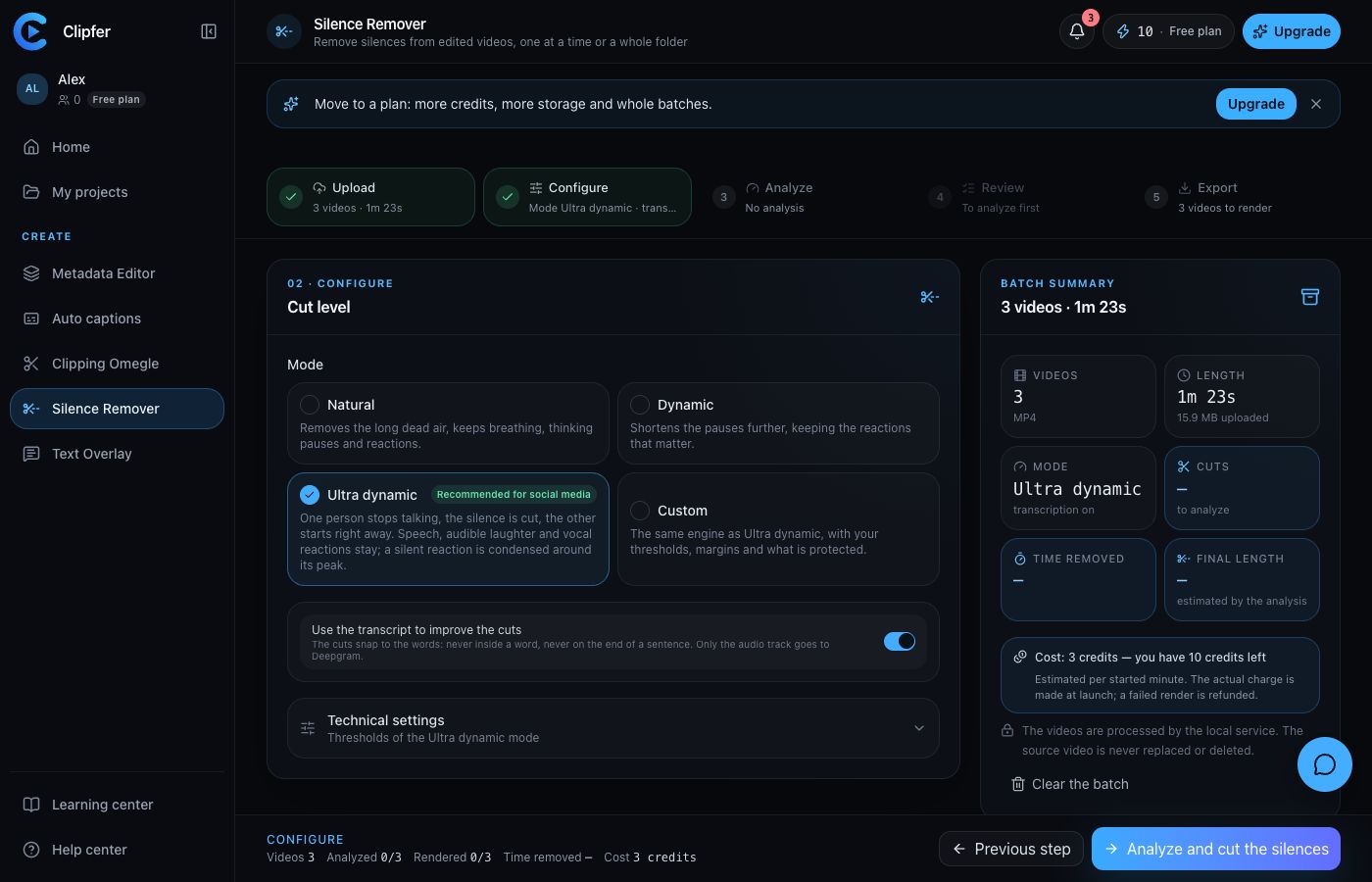
Step 2: Configure
The cut level
Under Cut level, pick a Mode:
| Mode | What it does |
|---|---|
| Natural | Removes the long dead air, keeps breathing, thinking pauses and reactions. |
| Dynamic | Shortens the pauses further, keeping the reactions that matter. |
| Ultra dynamic | Recommended for social media. One person stops talking, the silence is cut, the other starts right away. Speech, audible laughter and vocal reactions stay; a silent reaction is condensed around its peak. |
| Custom | The same engine as Ultra dynamic, with your thresholds, margins and what is protected. |
Whatever the mode, a word is never cut off.
Transcription
The Use the transcript to improve the cuts option snaps the cuts to the words: never inside a word, never on the end of a sentence. Only the audio track goes to Deepgram, within your plan's transcription minutes.
Technical settings
In Custom mode, the Technical settings section exposes the thresholds: Shortest silence to remove, Margin before speech and Margin after speech, Keep laughter, Keep visual reactions (condensed around their peak), Longest silent reaction, Sensitivity to quiet voices, Noise reduction for the analysis (on the analysis track only, never on the export) and Remove every unjustified silence.
Step 3: Analyze
Click Analyze and cut the silences and confirm the cost. For each video, the service goes through Measuring sound and picture, possibly Transcription, then Cutting and encoding and Quality check. The Silences found panel fills up as it goes: length before → after, gain, and for each silence a reason (Pause between two sentences, Wait before the answer, Blank at the end, after the last useful reaction…).
After the render, a check reads the export back to make sure no unjustified dead air remains; if some does, the plan is corrected and the render restarted automatically. If you change the level while the batch runs, the videos whose cuts change are rendered again on their own.
Step 4: Review
Compare before and after shows, for each video, the Original version and the Without the silences version on a waveform where the removed silences are marked.
- The summary shows how many cuts to review there are: the cuts the analysis is not sure about. If there are none (No uncertain cut: every cut is safe.), you can go to the export without opening anything.
- Listen to each uncertain cut (Listen to the silence…).
- To keep a silence you miss, click Keep the silence; Remove the silence again goes back, Reset everything for this video cancels your choices.
- Each restore triggers a new render of the video, automatically. Finish with Approve everything and continue.
Step 5: Export
The videos arrive as they finish, with their length after cutting. Download them one by one or with Download everything (ZIP); Retry the failures reruns the failed ones. A video marked Outdated · rendering again is being rebuilt after a change of cuts: wait for the up-to-date file. The original format is kept, 10-bit HDR included.
Cost
1 credit per minute of output video, every started minute with a 2-second allowance. The count is based on the length after cutting, not the original length. A failed or cancelled video is refunded.