Clipping Omegle, step by step
Turn a long conversation recording into vertical clips - frame both webcams, pick the analysis model, read the suggested clips, generate and export.
Clipping Omegle turns a long conversation recording (Omegle, Ome.tv, OmeTV…) into vertical clips ready to publish. The tool finds both webcams, transcribes the conversation, has a Claude model read the transcript and suggest passages, then renders each clip with captions, close-ups and sound effects. Seven steps: Upload, Frame, Configure, Analyze, Select, Review, Export.
Step 1: Upload
Drop a single recording into Ome.tv recording, up to an hour long. The file goes to your private space, then through The service is fetching the file, Analyzing the file and Preparing the sound; allow one to four minutes for a large file. A recording with no audio track is refused: the rest needs one.
Step 2: Frame
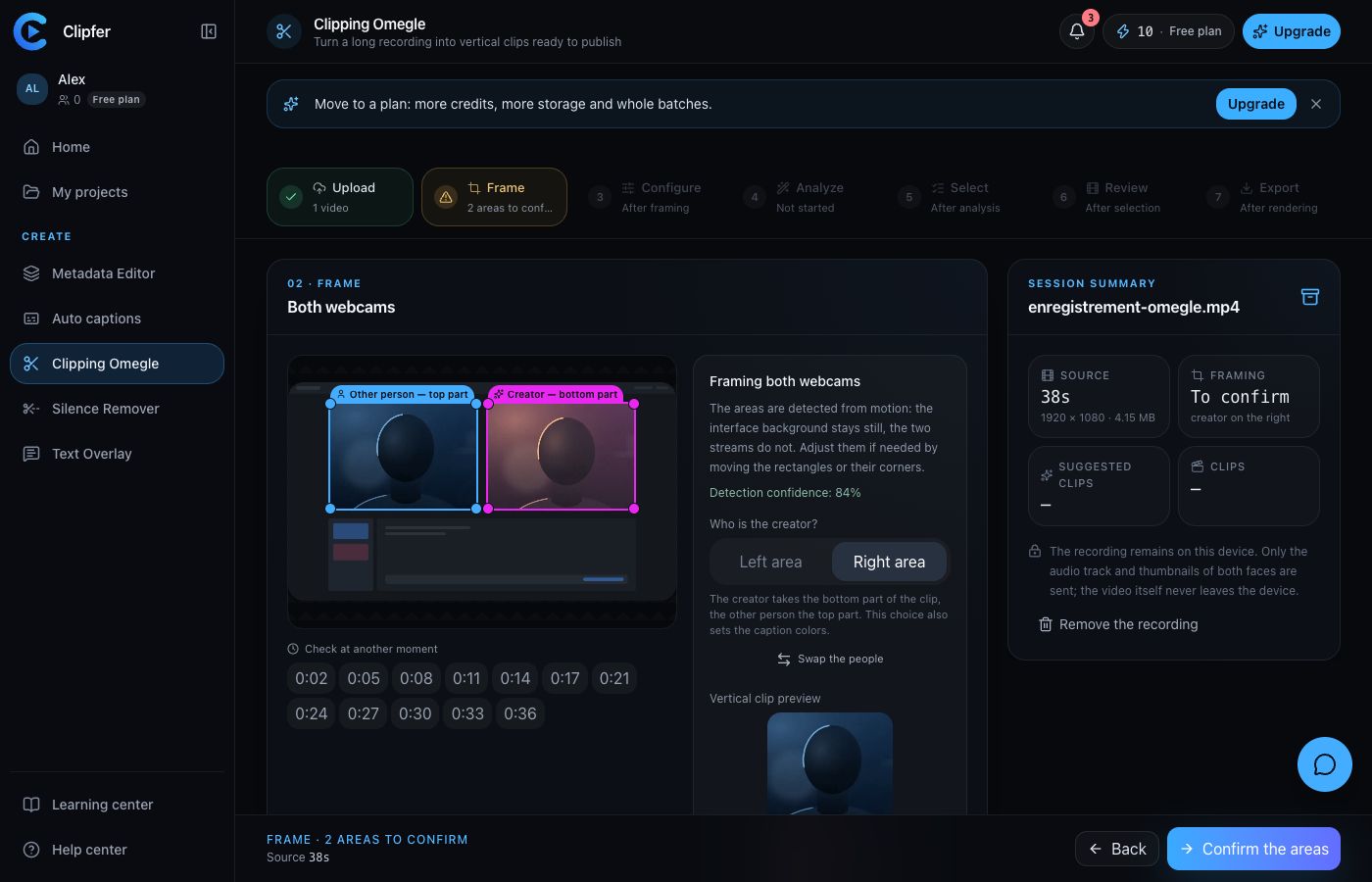
The tool finds both webcam streams by their motion: the interface background stays still, the two faces do not. The message Both webcam areas detected (confidence N%) appears.
- Check the Left area and Right area rectangles; move them or their corners if needed. Check at another moment changes the reference frame, Detect again starts over, Reset: two halves splits the picture in two.
- Answer Who is the creator? (Left or Right). The creator takes the bottom part of the clip, the other person the top part; this choice also sets the caption colors. Swap the people exchanges the two.
- Check the Vertical clip preview, then click Confirm the areas.
If detection fails, the Studio asks you to place both frames by hand.
Step 3: Configure
- Conversation pacing: the Content types looked for (Reaction, Questions and answers, Natural interaction, Other, combinable), the Clip length (15 to 30s, 20 to 35s, 30 to 60s, 1 to 3 min or Automatic; a target, never a stretch), the Edit pacing (Steady, Dynamic, Intense, or off for a split screen with no close-up), the Quality bar and the Range to analyze.
- Analysis model: it reads the conversation and sets the price. Claude Opus 5 is the sharpest on intent and irony (6 credits per analysed minute), Claude Sonnet 5 gives close results for two and a half times less (3 credits), Claude Haiku 4.5 is the cheapest, best kept for rough passes (2 credits).
- Captions and title bar: style, position and title bar for the whole batch, confirmed with Confirm the batch styling.
- Sound effects and Automatic censorship: sounds placed on reactions, sensitive words bleeped or masked.
- Without analysis: pick a clip by hand: set a Start and a Length, then Extract this clip. It joins the same list, without paying anything.
Step 4: Analyze
- Read the Analysis cost block: the number of credits depends on the range length and the model. Clip renders are included.
- Tick I have read the estimate and agree to run a billed analysis.
- Click Start analysis. Only the audio track goes to Deepgram, and the transcript plus thumbnails of both faces go to the model; never the video.
The phases follow one another: Transcription, Who is speaking, Analyzing moments, Suggested clips. Running the same analysis again costs nothing. If no clip clears the quality bar, lower it: it is free.
Step 5: Select
Nothing is generated yet: Suggested clips lists the moments found. For each one, the Why this clip? section gives what the model kept and the emotion it reports, to be checked with your own eyes. Tick the ones to keep, Dismiss this clip for the others (recoverable under Dismissed), adjust Start and End, and use Watch the source excerpt. Sort by Chronological or Relevance, then click Generate N clips.
Steps 6 and 7: Review, then Export
Under Generated clips, watch each clip. Edit opens the clip editor to adjust the edit (see The clip editor), Render again re-renders a clip, Swap the speakers fixes colors placed on the wrong person. At export, Download the archive delivers the clips; the Advanced settings set the Picture quality (Balanced, High, Maximum), the File names and the Attach the captions as .srt option.