Quality Checks Before Publishing: The List Every Clip Should Pass
A practical pre-publish checklist for vertical clips, podcasts, and bulk uploads so you catch problems before your audience does.
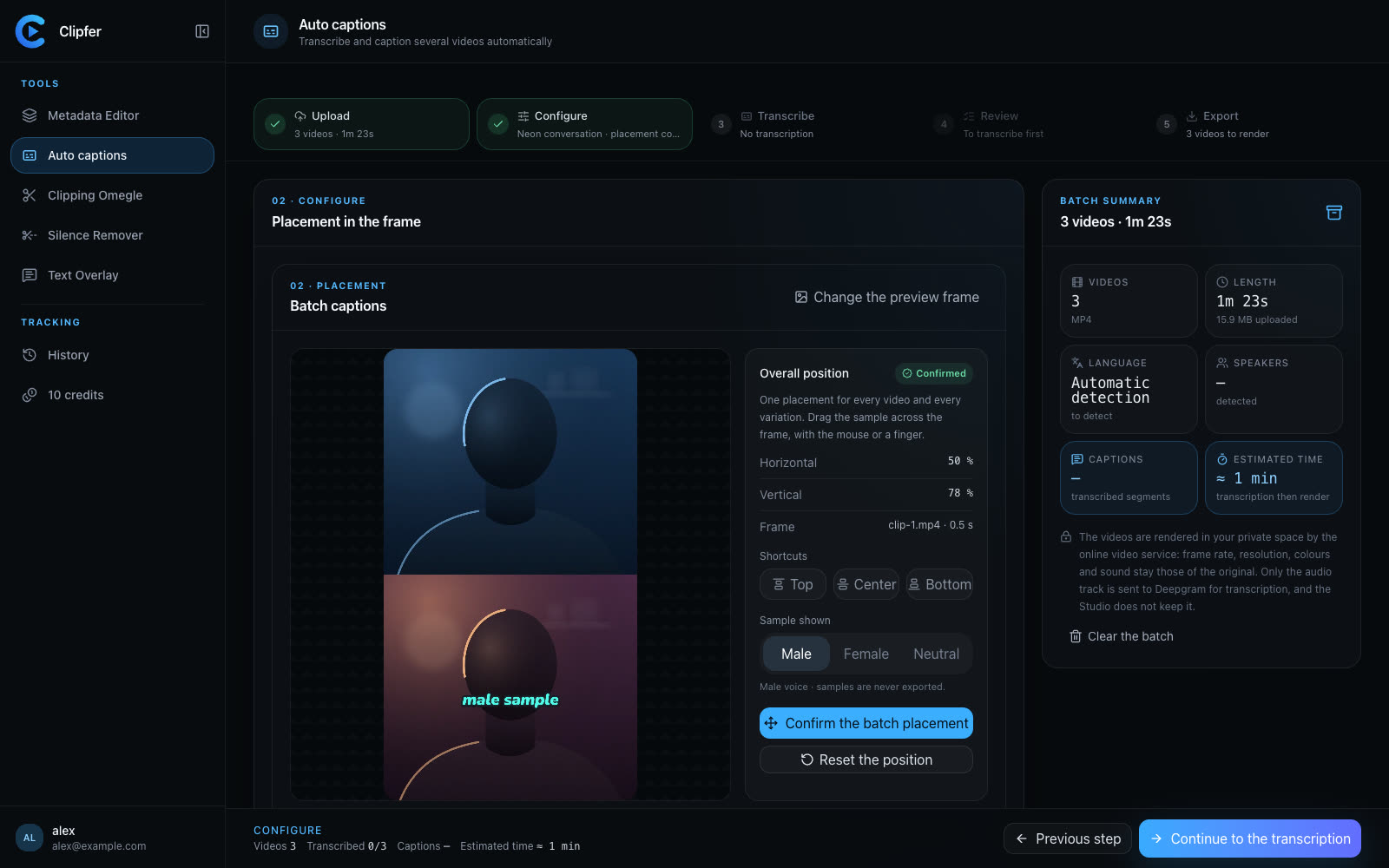
Publishing fast matters, but publishing something broken costs more time than it saves. A caption that cuts off mid-word, a watermark left in frame, a silence-riddled intro — these are the small things that make a clip look unfinished. Before anything goes out the door, it helps to run through a short, repeatable checklist rather than relying on memory. Here's the list we'd suggest, whether you're a solo creator or managing a batch for an agency.
Audio and silence
Start with sound, because a bad edit is more forgiving visually than audibly.
- Play the first and last three seconds at full volume — dead air at the start kills retention.
- Check for long pauses in the middle that should have been trimmed.
- If you're processing a folder of raw recordings, running Silence Remover first avoids manually hunting for gaps across dozens of files.
Captions and text
Captions are often the first thing viewers notice on mute.
- Read the transcript, don't just glance at it — auto-generated captions can mishear names, slang, or background noise.
- Confirm timing: text that lags behind speech looks unprofessional even if the words are correct.
- Check color and style consistency if you're using per-speaker colors on a podcast clip.
- If something looks off, it's worth correcting the transcription directly rather than re-recording.
Framing and format
- Make sure the export is actually vertical, not a letterboxed horizontal clip with black bars.
- Scan for any leftover watermark, timestamp, or UI element from the source recording — this comes up often with Omegle-style conversation footage.
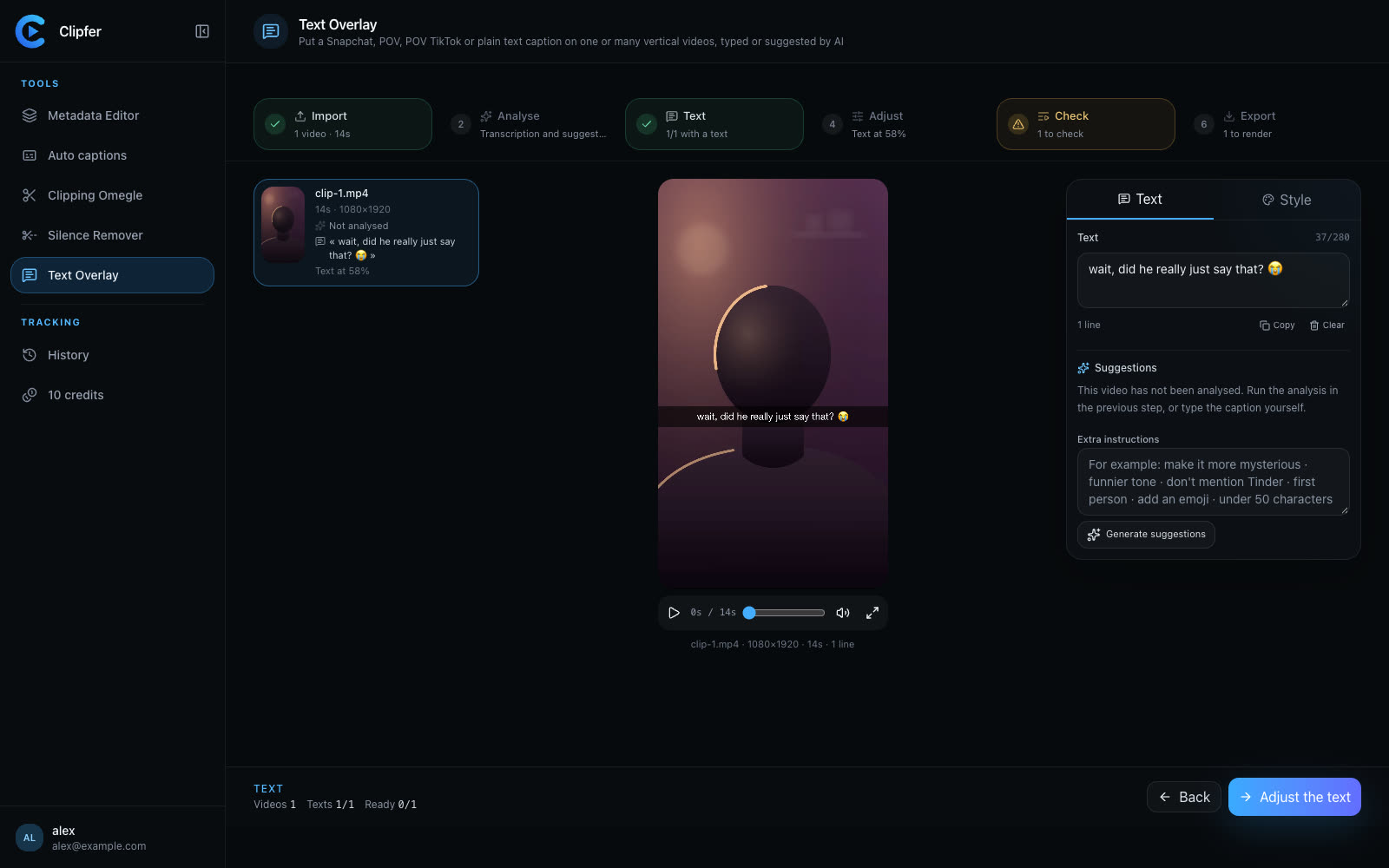
- If you used Text Overlay styles like POV or Snapchat-style text, confirm the text doesn't overlap a face or get cut off by the screen edge on different devices.
Metadata and uniqueness
For anyone publishing the same content across multiple accounts, metadata checks matter as much as visual ones.
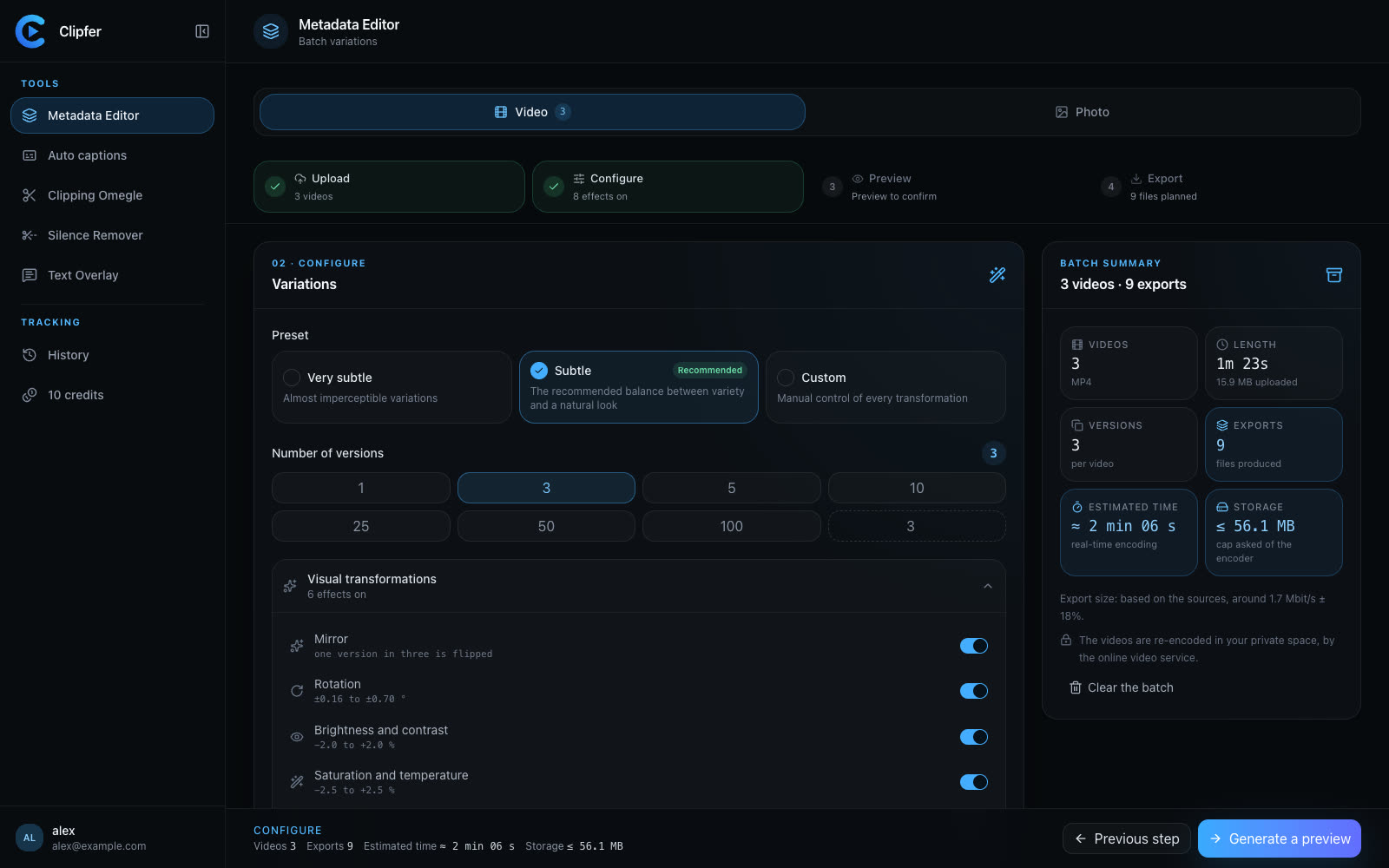
- If you ran a video or photo batch through the Metadata Editor, spot-check a few outputs to confirm each file has a distinct fingerprint rather than assuming the whole batch passed.
- For PDFs, remember only the metadata is rewritten — title, author, software, dates, and identifier — while the pages stay the same. Don't expect content changes there.
- Protected or signed PDFs will be refused outright, so check for that error before you assume the batch is done.
- Outputs are anonymized with randomized names and cleaned metadata by default, but it's still worth confirming nothing from the original filename leaked into the export.
Consistency across a batch
When you're producing many versions at once — say, a Mix run across a folder — consistency issues are easy to miss one file at a time.
- Open at least one file from each output folder, not just the first one.
- Confirm the distribution actually varies between versions the way you expected, since Mix assigns a different split of captions, Snapchat, POV, POV TikTok, and Text per video.
- Remember POV and Text overlays never get extra captions stacked on top — if you see captions on one of those, something was set up wrong upstream.
- If the Metadata Editor ran before the montage step, verify that order didn't accidentally strip something you needed later.
Final pass before upload
- Check file length against the platform's limit — a clip that's a few seconds too long gets silently rejected by some upload tools.
- Glance at thumbnail and first frame; an awkward freeze-frame as the cover image is an easy miss.
- If you're pulling from My projects, confirm you're grabbing the latest version and not an older draft still sitting in the same collection.
None of these checks take long individually, but skipping all of them on a rushed day is how a bad clip slips through. Building the habit of running through this list — even just mentally — before hitting publish saves far more time than it costs.
For more on specific steps mentioned here, see correcting auto-generated transcripts, cleaning silences across a folder, and exporting and finding your files.
Related articles
One Shared History for the Whole Team
How agencies and managers keep track of batches, versions, and clients without losing files across team members and tools.
Filming With Your Phone: Framing, Sound, and Light Without Gear
Practical phone-filming basics for vertical creators: how to frame, capture clean audio, and light a scene without buying any gear.
Captioning a Video in a Language You Don't Speak
A practical workflow for adding accurate captions to footage in a language you don't understand, without guessing or mistranslating.