Cutting silence: pacing a video without making it feel mechanical
Dead air, hesitations, breaths: what to remove, what to keep, how to set thresholds, and how to check the cuts across a whole folder before you export.
A spoken video always has more gaps than you think: the time spent looking for a word, the breath before a sentence, the "ums" that punctuate an explanation. One by one they are invisible. Added up, they often make up a good share of the running time and are what makes viewers drop off. Removing dead air is the single edit that changes how a video feels the most, as long as you do not cut everything.
What dead air does to a viewer
In a vertical feed, the next video is one thumb movement away. Every second without information is a chance to leave. A two-second pause mid-sentence, which nobody notices in real conversation, feels very long on screen. Hesitations have the same effect: "um", "like", "how do I put it" slow things down and add nothing.
This is not about speaking fast. Someone who talks slowly but without gaps holds attention better than someone who talks fast with holes in it. Continuity is what counts.
What to remove, what to keep
Not every silence is a flaw. Cutting too aggressively produces a breathless video where sentences pile up without air and reactions no longer have room to exist. A simple grid:
Remove:
- Gaps longer than a second in the middle of a sentence or between two ideas.
- Isolated hesitations ("um") that carry no emotion.
- The start and end of the recording, before the first sentence and after the last.
- Silences during which nothing happens on screen.
Keep:
- The pause before an answer: it builds anticipation, especially in a conversation.
- The breath before a laugh or a strong reaction.
- A silence where the picture speaks for itself (a look, an expression).
- A short beat between two topics, so the viewer understands the subject is changing.
In practice, a good edit removes the long gaps, shortens the medium ones and leaves the short ones alone.
Thresholds: three settings that matter
Three parameters decide what gets cut:
- The minimum length of a silence before it counts as a gap. Below a few tenths of a second, nothing is cut: those are breaths.
- The margins before and after speech. Cutting exactly at the first sound clips the words. Keeping a few hundredths of a second on each side of every line makes the cuts sound natural.
- The overall cut level, from natural to dynamic. For a podcast or a calm explanation, stay natural; for a reaction montage, go further.
One setting worth knowing, and one Clipfer offers: aligning cuts on the transcript rather than on the audio alone. A cut then never lands in the middle of a word or on the end of a sentence.
Processing a whole folder with Silence Remover
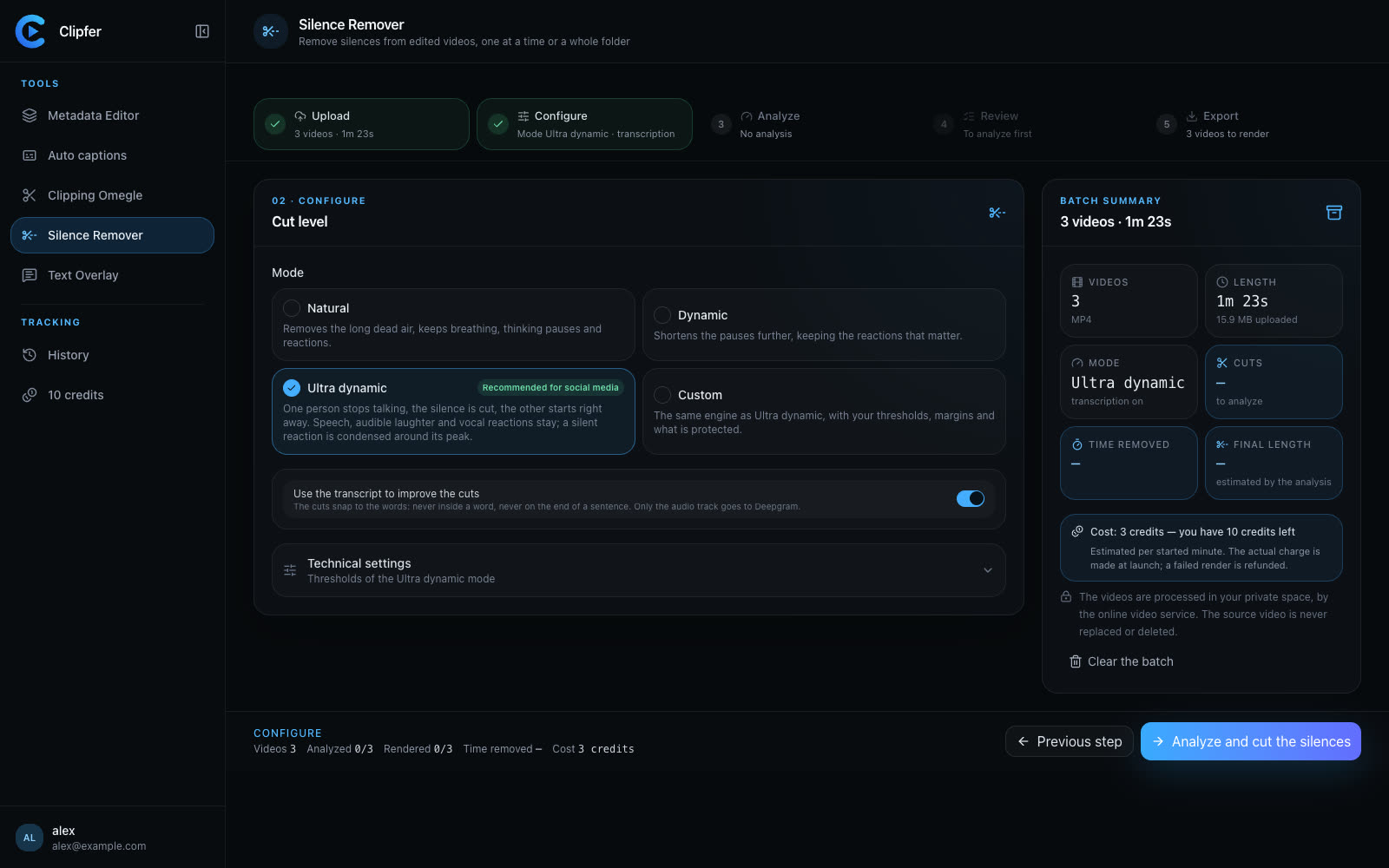
Clipfer's Silence Remover works on videos that are already edited, one at a time or as a complete folder, in five steps: Import, Settings, Analyse, Check, Export.
- Import a folder, a ZIP archive or a handful of files (MP4, MOV, M4V, WebM).
- Settings: choose the cut level once for the whole batch. Three levels are offered, from the most natural to the most dynamic, and you can turn on transcription so cuts follow the words.
- Analyse: each video is examined on sound, picture and, if enabled, transcript. The detected gaps are listed.
- Check: before and after play side by side. Uncertain cuts are flagged; listen to them and keep the ones you miss with one click. The video is re-rendered on its own.
- Export the files, in the same format as imported, one by one or as an archive.
Silence Remover uses 1 credit per minute of video produced, meaning the length after cutting, not the original length. The estimated cost is shown before you launch.
The check before export: five well-spent minutes
Do not skip the Check step, even on a batch of thirty videos. Two things to look at:
- Cuts flagged as uncertain. These are often moments where someone laughs quietly, whispers or reacts without speaking. Listen and decide.
- One random video, in full. If a cut clips a word or swallows a reaction, the margin setting is too tight for this batch: widen it and run again. It costs less than reposting.
If no cut is flagged, you can go straight to export without opening anything.
Going further
Related articles
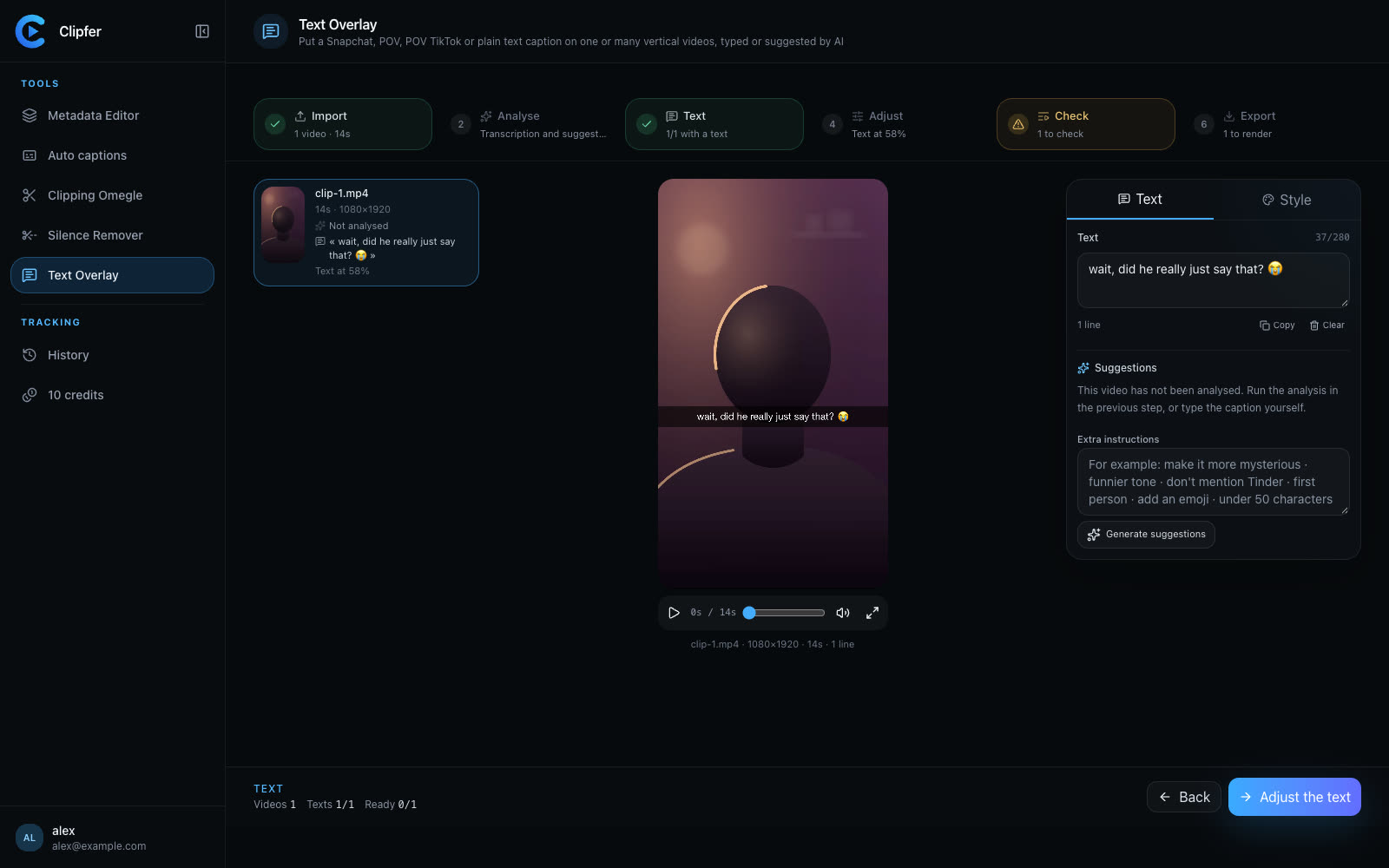
Vertical content in 2026: what actually works on Snapchat and TikTok
A hook in the first second, native on-screen text, captions, tight pacing and one recording reused across formats: the habits of growing Snapchat and TikTok accounts.
Agencies and OFM managers: running video production in weekly batches
For agencies and managers posting for several creators: weekly batches, folders, captions then variations from one recording, a shared history, and credits per plan.
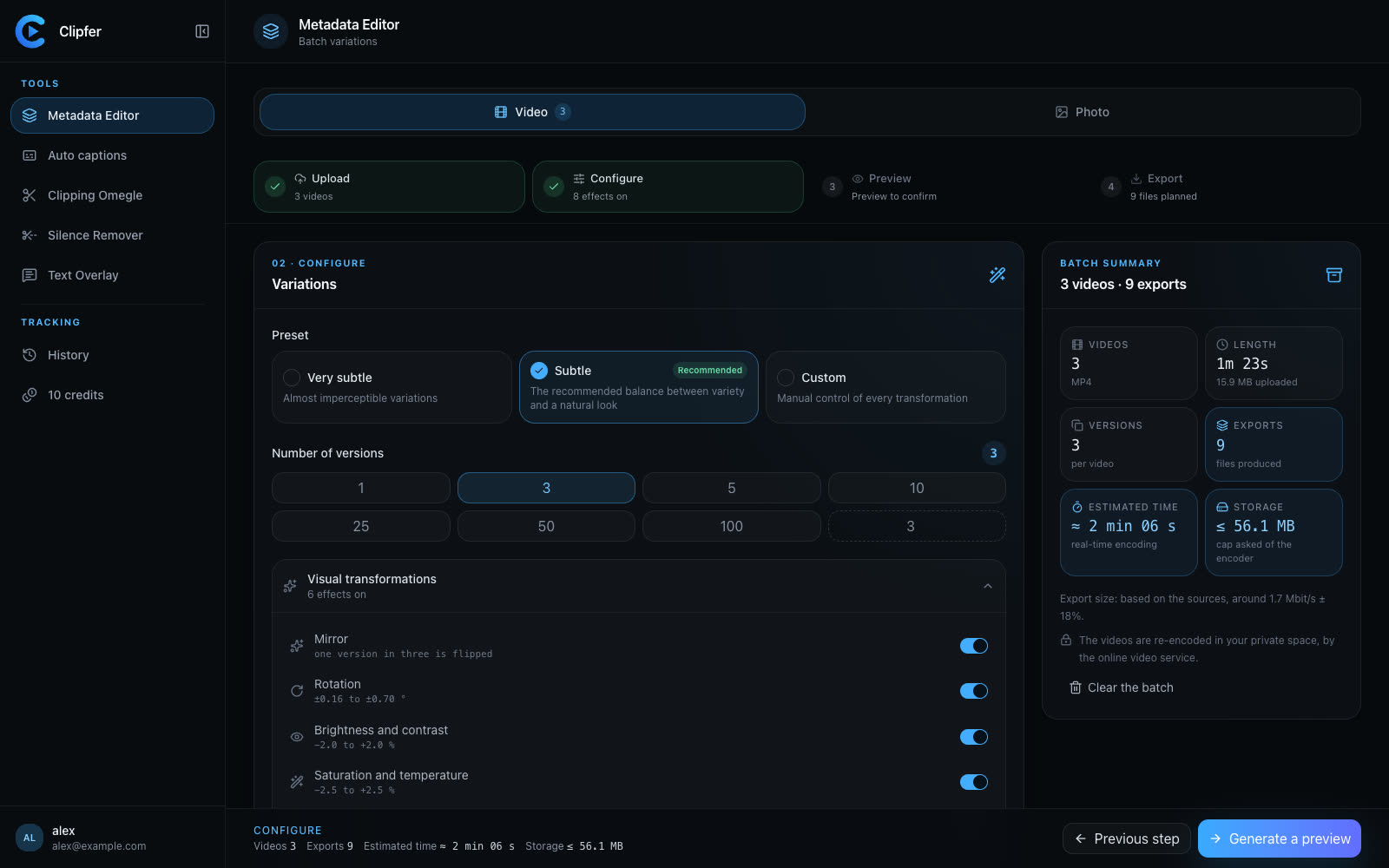
Posting the same video on several accounts: variations and metadata explained
Why an identical file gets flagged as a duplicate, what a variation changes (cleaned metadata, unique fingerprint), what to avoid, and how to produce versions as a batch.