Clipping an Omegle or Ome.tv conversation: from a long recording to vertical clips
Spotting the right moments, choosing who goes on top in the two-webcam frame, captions, sound effects, the analysis models and their credit cost, and polishing in the clip editor.
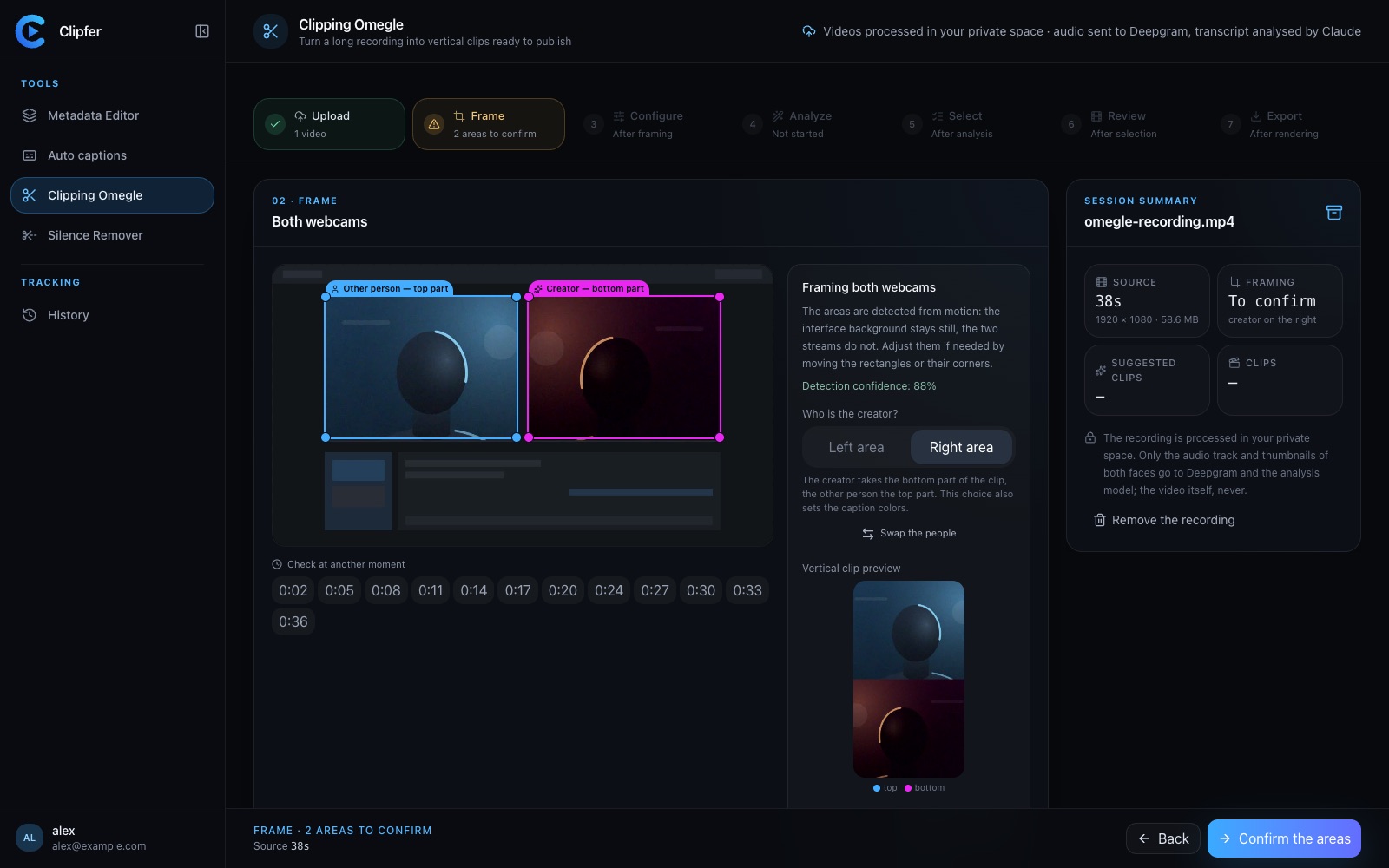
A recorded conversation on Omegle, Ome.tv or a similar platform often runs one to two hours, for a handful of moments worth posting. Clipping means finding them, reframing them vertically with both webcams, captioning them and giving them pace. Done by hand, that is an evening per recording. Here is how to judge a good moment, and how the Studio organises the work.
What makes a good moment
Looking back over hundreds of clips, the passages that work almost always fall into one of these families:
- The reaction. Someone laughs, is shocked, gets offended, is left speechless. The reaction is visible on screen, not only audible: it is what carries the clip.
- The question. A direct, unexpected or awkward question and the answer that follows. The clip starts on the question and stops as soon as the answer lands.
- The reveal. A detail that changes how you read the conversation: a lie exposed, a coincidence, a confession.
- The misunderstanding. Two people talking about different things for thirty seconds without realising.
By contrast, a "nice" passage with no precise moment rarely makes a clip. If you cannot sum up the clip in one sentence ("she finds out he is from the same town"), something is missing.
A good clip runs fifteen to forty-five seconds. Longer and the ending goes unwatched; shorter and the context is missing.
The two-webcam frame: who goes on top?
Vertical video forces you to stack the two webcams. The choice is not trivial: viewers look at the top of the screen first.
Put the person whose reaction makes the clip on top, and the one talking or asking the question at the bottom. In most recordings the stranger reacts and you lead, so the stranger goes on top. If the clip rests on your own reaction, swap them.
In Clipfer's Clipping Omegle, the Frame step detects both webcams in the recording and proposes the two frames; you adjust them, choose who goes on top, and confirm once for the whole batch. Close-ups on reactions are then placed automatically, with an adjustable density: "Steady" reserves close-ups for the strongest reactions.
Captions and sound effects
Two voices, often recorded in different conditions: captions are not optional. Give each voice its own colour so viewers know who is talking without thinking, and keep to a few words at a time.
Sound effects should stay discreet. One effect under a reveal or a punchline, placed below the voice, strengthens the moment; one every five seconds is exhausting. The tool offers a library of effects picked according to the words, the reactions and the context, with a default volume below the voice. You can remove or add them clip by clip.
The dead air in the conversation (loading time, "wait, can you hear me?") is cut on the same principle as Silence Remover: reactions are kept, gaps are shortened.
The analysis models and what they cost
After transcription, Clipfer hands the conversation to a Claude model, which reads it and proposes passages. Three models are available, priced per analysed minute:
| Model | Credits per analysed minute | When to use it |
|---|---|---|
| Claude Haiku 4.5 | 2 | Rough passes, very long recordings |
| Claude Sonnet 5 | 3 | The right balance for most sessions |
| Claude Opus 5 | 6 | The sharpest on intent and irony |
A one-hour recording analysed with Sonnet therefore costs 180 credits; rendering the clips, the previews and edits in the editor are included. If the model proposes nothing or declines to analyse, the credits are refunded automatically. The estimated cost is shown before you launch, and the server refuses the analysis without charging anything if your balance is short. Details are in Understanding credits.
Then you decide: every proposed passage can be kept, dropped or adjusted. Nothing is exported without your approval.
The clip editor
The Check step opens each clip in an editor with a timeline. This is where quality is won:
- The boundaries. Move the start up to the first useful word; end the clip one second after the punchline, no more.
- The captions. Proofread the clip's transcript: names, misheard words, punctuation.
- Close-ups and sounds. Remove a close-up that lands in the wrong place, move a sound effect.
- Dead-air cuts. Put a gap back if a reaction got swallowed.
Once the clips are approved, the export produces anonymised vertical files (random names, cleaned metadata), downloadable one by one or as an archive. The session stays in your History, synced across your devices.
Going further
Related articles
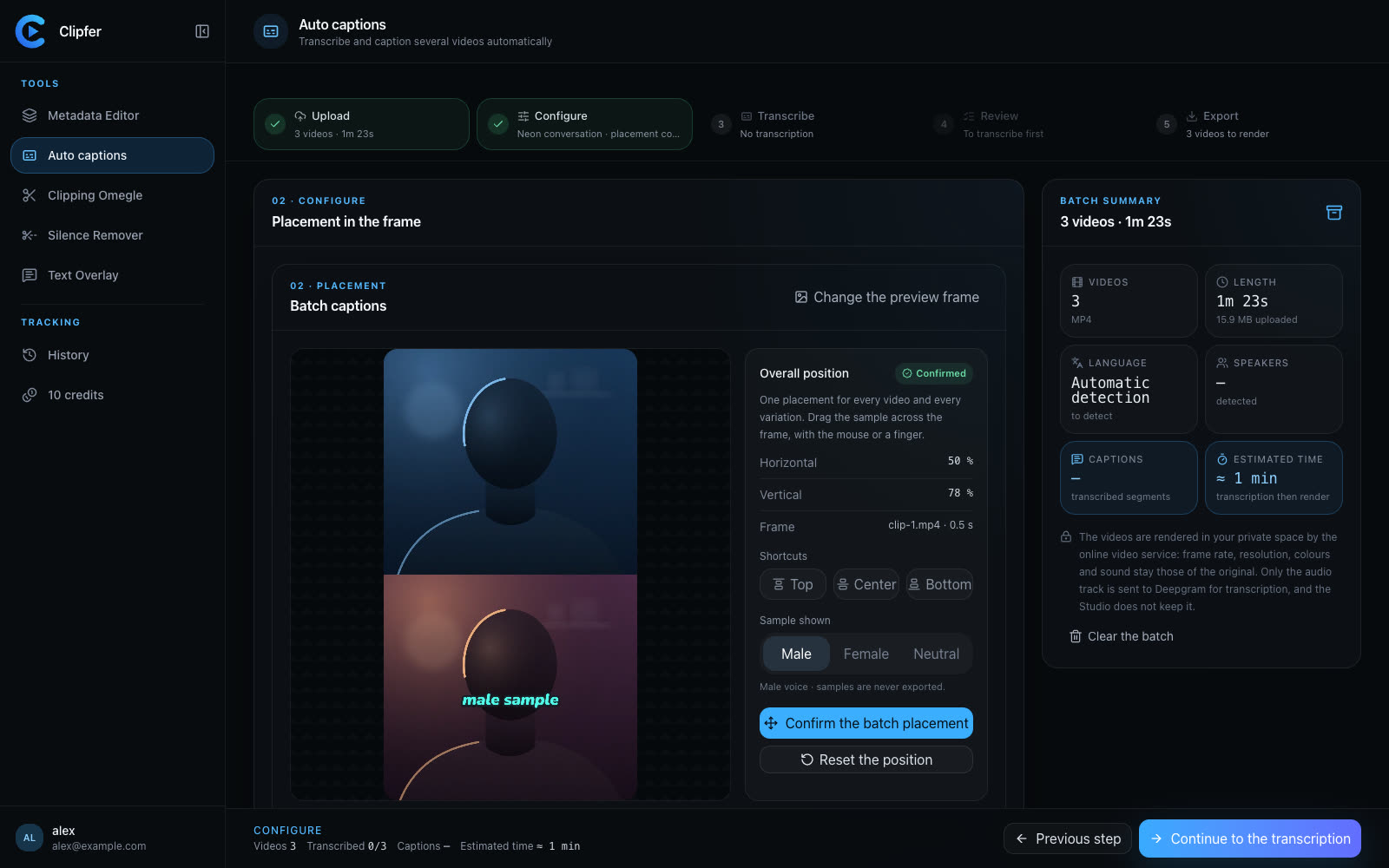
Auto captions: why they keep viewers watching, and how to get them right
Sound off, accessibility, comprehension: captions keep people watching. The practices that matter (lines, fonts, speaker colours, timing) and how to caption a whole batch.
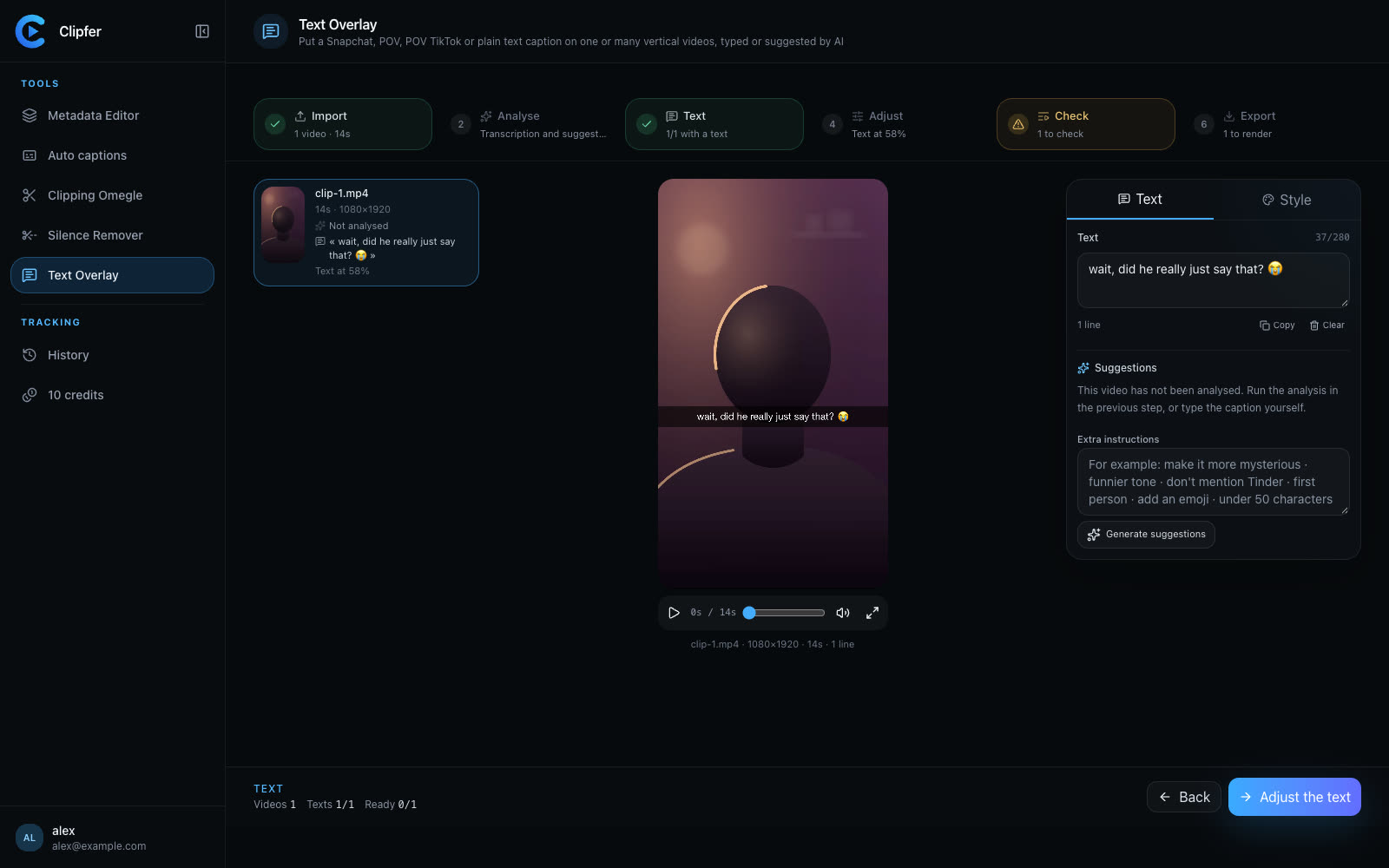
Vertical content in 2026: what actually works on Snapchat and TikTok
A hook in the first second, native on-screen text, captions, tight pacing and one recording reused across formats: the habits of growing Snapchat and TikTok accounts.
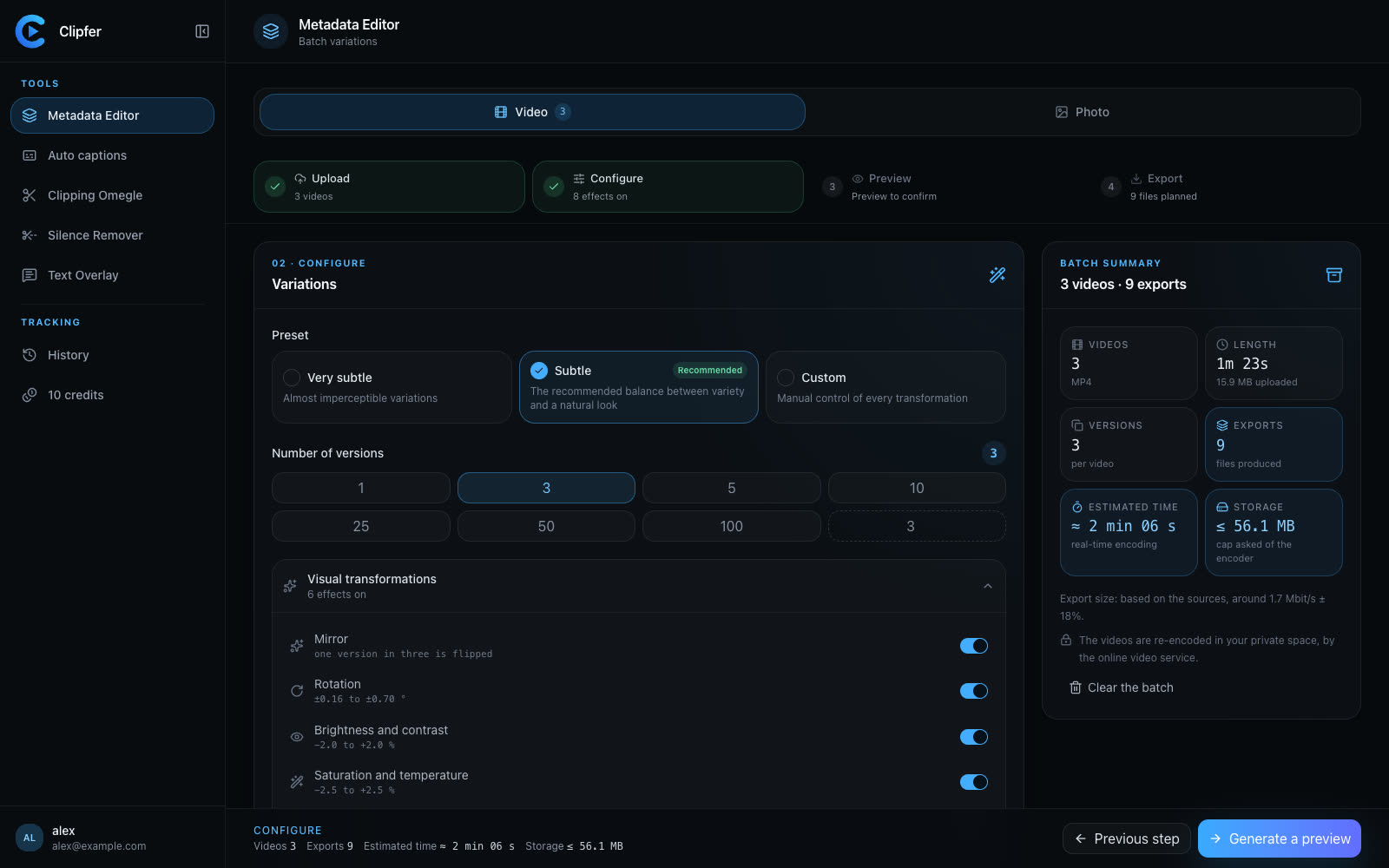
Agencies and OFM managers: running video production in weekly batches
For agencies and managers posting for several creators: weekly batches, folders, captions then variations from one recording, a shared history, and credits per plan.